The Elgato Cam Link 4K is the best overall choice here for streaming a DSLR or mirrorless camera: it is the original product the “cam link” name comes from, it connects over USB 3.0 and shows up as a standard webcam without drivers. The listing offered here is a renewed unit, so condition and warranty terms matter. If you want a lower-cost alternative, the VIXLW and Mwin USB 3.0 devices claim 4K and 1080p120 modes, while the USB 2.0 models are for simple 1080p-class streaming. A cam link is an HDMI capture dongle that lets a camera’s clean HDMI output act as a webcam.
Our Top Picks
Top 3 picks at a glance
Quick List
- VIXLW Cam Link 4K – best for a USB 3.0 capture dongle that lists 4K60 and 1080p120
- ORIVISION HDMI to USB 2.0 Capture Card – best for basic 1080p streaming on older USB ports
- Mwin Cam Link 4K – best for a low-latency 4K30 and 1080p120 option
- Generic 4K Video Capture Card (USB 2.0) – best for casual recording and audio capture, with bandwidth limits
- Mirabox USB 3.0 HDMI Capture Card – best for 1080p60 with HDMI passthrough, also used for consoles
- Elgato Cam Link 4K (Renewed) – best overall for plug-and-play webcam use with a DSLR
Which One Is Right for You?
| If you… | Choose |
|---|---|
| want the best-known, driverless webcam-style capture for a camera | Elgato Cam Link 4K (Renewed) |
| want to try a USB 3.0 dongle claiming 4K60 and 1080p120 | VIXLW Cam Link 4K |
| want low latency and 1080p120 for fast motion | Mwin Cam Link 4K |
| also capture a console and want HDMI passthrough | Mirabox USB 3.0 HDMI Capture Card |
| only have USB 2.0 ports and stream at 1080p30 | ORIVISION or the generic USB 2.0 card |
| want a simple card for recording with audio capture | Generic 4K Video Capture Card (USB 2.0) |
First check your camera: it needs a clean HDMI output (no on-screen overlays), and you need to know whether it supplies a mini or micro HDMI port. Then check your computer for a true USB 3.0 port, usually blue or marked SS. Match the capture device’s interface to that port; plugging a USB 3.0 dongle into a USB 2.0 port often fails or falls back to a lower mode.
All 6 Picks in Detail
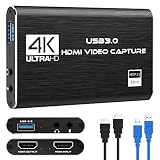
1. VIXLW Cam Link 4K – Best Budget-Style USB 3.0 Dongle
As an Amazon Associate we earn from qualifying purchases at no extra cost to you.

The VIXLW is an external capture card for DSLRs, camcorders and action cameras that converts HDMI to USB 3.0, and the listing claims 4K60 and 1080p120 for meetings, streaming and recording. It suits creators who want an inexpensive alternative to name-brand dongles and are comfortable checking compatibility. The listed modes are manufacturer-style claims, so verify the real supported combinations on the product page, as many devices in this class list 4K input but deliver lower output modes.
A good way to approach a lesser-known dongle is to treat the first session as a compatibility check. Connect your camera, set it to clean HDMI output, open your streaming software and cycle through the modes the device offers. Note which resolution and frame rate the software actually reports, because that is what viewers will see. If the real mode list matches your needs at 1080p60, the dongle is doing its job; if it falls back to a lower frame rate, you can use the return window.
Setup is usually plug-and-play, appearing as a video device in streaming software such as OBS or in meeting apps. Make sure the camera is set to clean HDMI output and an appropriate resolution.
- HDMI input to USB 3.0 output
- Listing claims 4K60 and 1080p120 modes
- Works as a webcam source with DSLR, camcorder or action cam per the listing
- Driver and OS support: confirm on listing
- Passthrough, audio and compression behavior: confirm on listing
Pros:
- USB 3.0 interface for higher-quality modes
- Compact dongle format
Cons:
- Unknown-brand support and driver history
- Mode claims need verification
Compared with the Mwin, it advertises 4K60 while the Mwin lists 4K30.
2. ORIVISION HDMI to USB 2.0 Capture Card – Best for Older Ports

The ORIVISION is an audio and video capture card that converts HDMI to USB 2.0 for Full HD recording and live streaming from a DSLR, camcorder or action cam. It suits streamers with older laptops or desktops who do not have a USB 3.0 port and who stream at modest quality. USB 2.0 has a limited bandwidth of 480 Mbps, so devices on it typically use compressed video such as MJPEG, which is why quality and frame rate depend on the mode.
Streamers on older hardware often find that the limiting factor is the computer, not the capture device. A USB 2.0 card pairs well with a modest laptop where encoding at 1080p60 would strain the processor anyway. Keep the camera framed for a talking-head shot, use good lighting to reduce compression artifacts, and set the stream bitrate to match your upload speed. Under those conditions, a compressed 1080p30 feed looks perfectly acceptable to most viewers.
For 1080p at 30 frames per second this class of device can work fine for talking-head streams and recordings, but expect more compression artifacts than on USB 3.0 uncompressed capture.
- HDMI to USB 2.0
- Full HD capture per the listing
- Audio and video capture for streaming and recording
- Supported frame rates and passthrough: confirm on listing
- Operating system and software compatibility: confirm on listing
Pros:
- Works with older USB 2.0 ports
- Simple for basic streaming
Cons:
- Limited bandwidth, so compressed video
- Not suited to 60 fps high-quality capture
Next to the Mirabox, it is the older-port option, while the Mirabox uses USB 3.0 for 1080p60.
3. Mwin Cam Link 4K – Best Low-Latency Option

The Mwin Cam Link 4K is described as an external camera capture card with 4K30 and 1080p120 support for streaming and recording via DSLR, camcorder or action cam, with low latency for video calls and live shows. It suits creators who want smooth motion at 1080p and are fine with 4K at 30 frames per second. Low latency matters for live interaction, since a delay between your speech and your video can feel awkward on calls.
The low-latency claim is the reason to look at this model for live work such as video calls, classes and interactive streams. Latency is the delay between what the camera sees and what appears on screen, and a long delay makes conversation feel stilted. Many streamers also add a small audio delay in their software to line up speech with the picture, which is easy to adjust once you can watch your own feed. Always confirm the interface generation before expecting the higher modes.
The 1080p120 claim is mainly useful when you want high-frame-rate capture for sports or fast movement, and it assumes the camera can output that mode over HDMI, which many cameras cannot. Confirm your camera’s HDMI output modes first.
- HDMI capture over USB, 4K30 and 1080p120 per the listing
- Streaming and recording via DSLR, camcorder or action cam
- Low-latency design per the listing
- USB generation, passthrough and driver needs: confirm on listing
- Audio input behavior: confirm on listing
Pros:
- High-frame-rate 1080p mode
- Low-latency focus
Cons:
- 4K tops out at 30 fps
- Brand support is limited
It sits between the VIXLW and the Elgato: more modest than the VIXLW’s claims, but also more specific.
4. Generic 4K Video Capture Card (USB 2.0) – Best for Casual Recording
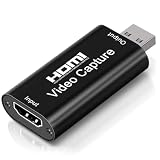
This unbranded 4K video capture card is also marketed as a cam link and game capture adapter with HDMI to USB 2.0 and audio capture for streaming and live broadcast. It suits casual recording and occasional streaming where cost and simplicity matter more than top-end quality. The “4K” in the name should be read carefully: a USB 2.0 interface cannot carry 4K video uncompressed, so the card most likely accepts a 4K signal and outputs a lower or compressed result. Check the listing to see the actual output resolution and frame rate.
For a device like this, the most useful approach is to define the job it needs to do. If you want to record a family event or a quick tutorial at 1080p, a basic USB 2.0 card with audio capture can be adequate. If you want crisp 4K output, a plain USB 2.0 card is the wrong tool, and you should move to a USB 3.0 model with documented modes. Reading the listing’s mode table closely is the best protection against disappointment.
- HDMI to USB 2.0
- Audio capture adapter per the listing
- Marketed for streaming and live broadcast
- Real output resolution and frame rate: confirm on listing
- Passthrough and driver support: confirm on listing
Pros:
- Simple plug-in device
- Audio capture is included in the description
Cons:
- “4K” naming may overstate real capture quality
- USB 2.0 bandwidth limits
Versus the ORIVISION, it is similar in interface but advertises a 4K input in the name.
5. Mirabox USB 3.0 HDMI Capture Card – Best with HDMI Passthrough
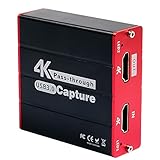
The Mirabox is a USB 3.0 HDMI video capture card marketed for the Nintendo Switch, with 1080p at 60 frames per second and an HDMI passthrough, and the listing says it works with DSLRs as well. It suits people who want one device for both console capture and a camera feed. Passthrough means the signal can go to a TV or monitor while it is also captured, which avoids lag on the screen you play on.
The passthrough feature changes how you set up your desk. With a console, the signal travels from the console to the capture card, and out to the monitor, while the computer records or streams the capture. With a camera, passthrough lets you keep an external monitor on the feed for focus checks while the computer records. Because the card is aimed at game capture, check the camera’s HDMI output format early, and prefer standard resolutions such as 1080p60 for the best compatibility.
Its primary use is game capture, so for DSLR streaming confirm that it recognizes your camera’s output format and that a clean HDMI signal is enabled. 1080p60 is a sensible target for most streams.
- HDMI to USB 3.0
- 1080p at 60 fps per the listing
- HDMI passthrough per the listing
- Works with DSLR per the listing; Nintendo Switch focus
- Driver support and audio handling: confirm on listing
Pros:
- Passthrough for console or monitor use
- USB 3.0 supports 1080p60
Cons:
- No 4K capture listed
- Marketed mainly for game consoles
Compared with the Elgato, it adds passthrough but tops out at 1080p60.
6. Elgato Cam Link 4K (Renewed) – Best Overall Plug-and-Play
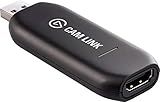
The Elgato Cam Link 4K is an HDMI to USB 3.0 capture device that turns a DSLR, camcorder or action cam into a webcam. According to Elgato, it supports modes up to 1080p60 and 4K30, uses the standard UVC interface so it needs no drivers, and has no HDMI passthrough, which isn’t needed for camera feeds. It suits streamers, teachers and remote workers who want a dependable path from camera to computer. This listing is a renewed unit, so check the seller’s condition grade and return terms.
The strongest argument for choosing it is predictability. A UVC device works with Windows, macOS and many apps without installing a driver, which reduces the number of things that can go wrong on the day of a stream. The renewed condition is the main caveat, so look at what the seller says about inspection and the length of the return window. Keep the original extension cable handy, since it helps avoid stressing the port and makes it easier to plug in the dongle on a tight laptop.
Elgato’s current page also lists a 4K60 mode in Motion JPEG, but older documents stop at 4K30, so match the firmware and the software you use. It must be plugged into a USB 3.0 port, whether Type-A or Type-C.
- HDMI to USB 3.0, UVC class device (no drivers)
- Up to 1080p60 and 4K30 per Elgato
- No HDMI passthrough
- Compact dongle, about 20 g, with a short extension cable per Elgato
- Renewed condition and warranty: confirm on listing
Pros:
- Plug-and-play and widely supported
- Established brand with a clear specification page
Cons:
- Renewed unit, so condition varies
- No passthrough and no 4K60 uncompressed mode
It is the reference point for the other five, which copy its name and shape but not necessarily its support.
Specs Compared
| Device | Interface | Listed video modes | HDMI passthrough | Driver / class | Condition |
|---|---|---|---|---|---|
| VIXLW Cam Link 4K | HDMI to USB 3.0 | 4K60, 1080p120 (listing claim) | Confirm on listing | Confirm on listing | New |
| ORIVISION Capture Card | HDMI to USB 2.0 | Full HD | Confirm on listing | Confirm on listing | New |
| Mwin Cam Link 4K | HDMI to USB (generation: confirm on listing) | 4K30, 1080p120 | Confirm on listing | Confirm on listing | New |
| Generic 4K Capture Card | HDMI to USB 2.0 | Confirm on listing | Confirm on listing | Confirm on listing | New |
| Mirabox USB 3.0 Capture Card | HDMI to USB 3.0 | 1080p60 | Yes | Confirm on listing | New |
| Elgato Cam Link 4K | HDMI to USB 3.0 | Up to 1080p60 and 4K30 (Elgato) | No | UVC, no drivers | Renewed |
How We Chose These
We built this guide from the listing names and manufacturer information for HDMI capture devices that are marketed for camera streaming. We compared the interface (USB 2.0 or 3.0), the stated video modes, passthrough and driver behavior, and we used Elgato’s published specification page for the Cam Link 4K. We treated modes in unknown-brand listings as claims rather than verified facts and said so in the text. We did not run video, latency or compatibility checks ourselves, and our recommendations lean on what the specifications state and on general knowledge of how USB bandwidth limits capture.
What to Look For
USB 2.0 versus USB 3.0
This is the biggest dividing line. USB 2.0 provides 480 Mbps, while uncompressed 1080p at 30 frames per second needs roughly 1 Gbps, so USB 2.0 devices rely on compression, often MJPEG, and typically top out at 1080p30. USB 3.0 offers 5 Gbps, enough for uncompressed 1080p60 and, with compression, 4K modes. If your computer lacks a true USB 3.0 port, a USB 3.0 device will not give its best results.
Real resolution and frame rate
“4K” on a capture device often describes the maximum input, not the output. Look for the exact combinations, such as 1080p60 or 4K30, and whether they are uncompressed or compressed. For talking-head streaming, 1080p30 is acceptable, 1080p60 looks smoother, and 4K30 helps if you crop and reframe in software. High-frame-rate modes such as 1080p120 matter only if the camera can output them over HDMI.
Camera requirements: clean HDMI and power
Your camera must output clean HDMI, meaning no focus boxes, menus or recording icons. Many cameras also shut off after 30 minutes unless they are powered with a dummy battery or USB power, and some overheat during long streams. Check your camera’s manual for a clean-output setting and a continuous-power option, and use a full-size HDMI cable or the correct adapter for mini or micro ports.
Latency, audio and software
Capture devices add a small delay, usually tens of milliseconds, and you may need to offset your audio to match the video. Audio from a camera can come over HDMI, but a dedicated microphone often sounds better. Most devices appear as a webcam or a video source in OBS, Zoom and similar apps.
Worked example
Suppose you stream with a mirrorless camera that outputs clean 1080p60 over micro HDMI. You need a USB 3.0 capture device that supports 1080p60, a micro HDMI to HDMI cable and a dummy battery. Any of the USB 3.0 dongles qualifies, but the Elgato is the safest bet for compatibility, while the Mirabox is attractive if you also want to pass a console signal through to a monitor.
Lenses, lighting and framing. The capture device only moves the picture; the picture itself comes from the camera, lens and lighting. A fast lens in the 35 to 50 mm range on an APS-C body gives a pleasant, softly blurred background at a desk distance, and a key light placed at about 45 degrees to the side avoids flat, shadowed faces. Set the camera to manual exposure and a fixed white balance so the picture does not shift during a long stream, and use a lens with a fixed focal length or lock the zoom so the framing stays constant.
Cables, adapters and ports. Most cameras use mini HDMI (Type C) or micro HDMI (Type D) connectors, and the capture device uses a full-size HDMI port, so you need a matching cable. Choose a short, well-made cable of 1 to 2 meters; long or thin cables are a common cause of flicker and dropouts. On the computer side, use a port directly on the machine instead of an unpowered hub, and avoid sharing a USB controller with other high-bandwidth devices such as external drives.
Software settings that matter. In OBS and similar tools, select the capture device as a video source and set its resolution and frame rate manually instead of leaving them on automatic. Match the frame rate to your stream output to avoid judder, and choose a video format such as NV12 or YUY2 if offered for uncompressed capture. If the picture looks washed out or too dark, change the color range setting between limited and full until the blacks look right.
Questions
Do I need a cam link to use my DSLR as a webcam?
Not always, because some cameras offer a USB webcam mode, but HDMI capture usually gives better quality and control. A cam link also works with cameras that lack a webcam mode.
Is USB 2.0 enough for streaming?
For 1080p30 and casual streams, yes, usually with compressed video. For smoother 60 fps or higher quality, USB 3.0 is a better choice.
Why does my camera turn off after 30 minutes?
Many cameras have a recording time limit or an auto power-off feature. A dummy battery with an AC adapter and disabling auto power-off can solve it, depending on the model.
What does HDMI passthrough do?
It sends the same signal to a monitor or TV while capturing it, so you can watch the camera or console without lag. It is useful for gaming but not required for camera streaming.
Is a renewed capture device a good idea?
It can be a sensible way to get a known model, provided the seller offers a clear condition grade and a return window. Inspect the port and cable on arrival.
Update History
- October 20, 2026 – Initial publication; product set drawn from current catalog listings.
- Check the product page for current specifications and availability before buying.
Sources
- Manufacturer specification and support pages for the Elgato Cam Link 4K
- Retailer listing titles and specification fields for the other capture devices
- General USB 2.0 and USB 3.0 bandwidth conventions