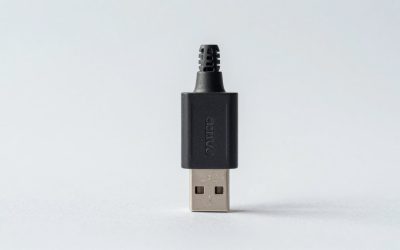
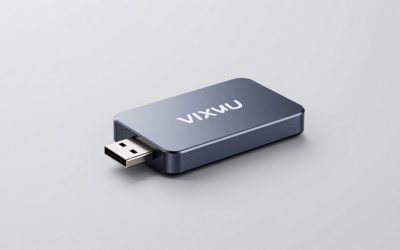
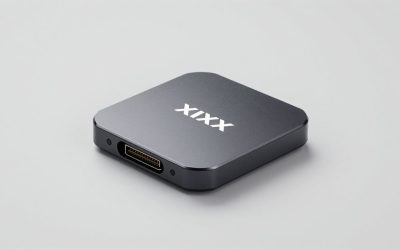
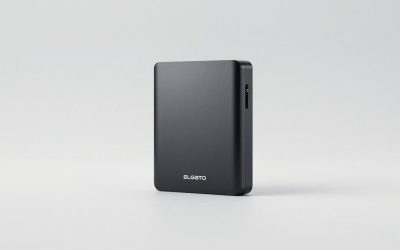
For most buyers, the real decision is not simply “PCIe or USB?” It is whether you need the lowest-delay path for a permanent gaming or streaming desk, or a flexible setup that can move between a living-room console, a guest-room PC, and a laptop. Internal capture card vs external capture card latency matters most when you are monitoring gameplay through recording software rather than directly on a TV or monitor.
Both types can provide a near-instant experience on a connected display through HDMI passthrough. The more noticeable delay usually appears in the software preview window, where the video must be captured, transferred, decoded, and displayed. An internal PCIe card generally has the cleaner route to a desktop PC, while a well-specified external USB capture card can be remarkably responsive and far easier to place where your household actually uses its devices.
As an Amazon Associate we earn from qualifying purchases at no extra cost to you.




For a home setup in 2026, think about the entire room: available desk depth, where cables can be hidden, who needs access to the equipment, and whether the capture computer is a stationary tower or a laptop that comes out only for game nights.
Our Top Picks


Top 3 picks at a glance
Quick Verdict
Choose an internal capture card when you have a compatible desktop tower, want the tidiest permanent installation, and stream or record often enough to justify opening the PC. PCIe cards typically offer dependable high-bandwidth operation, fewer accessories on the desk, and strong options for dual-PC setups. They are especially sensible for a dedicated office, media room, or long-term gaming station.
Choose an external capture card when portability, easy installation, and broad computer compatibility matter more than hiding every cable. A quality USB model can deliver low-latency passthrough while working with a laptop, mini PC, or changing console location. It is usually the more practical choice for renters, small apartments, and shared family spaces.
Do not buy either type solely to play through an OBS preview. For competitive play, connect your main monitor or television to the card’s HDMI passthrough output and use the preview primarily for stream management. That arrangement minimizes the impact of capture-preview delay regardless of card style.
Side by Side
| Buying factor | Internal PCIe capture card | External USB capture card |
|---|---|---|
| Latency approach | Direct PCIe connection can keep capture transfer efficient; use passthrough for play. | USB adds another connection step, but modern USB 3.x models can still offer low-latency passthrough. |
| Comfort and daily use | Nothing extra on the desktop once installed; ideal for a fixed chair-and-monitor setup. | Easy to reach, reconnect, or move; convenient when the console and recording computer change places. |
| Durability | Protected inside the PC case, with less risk of bumps, spills, or pulled cables. | Portable enclosure can take wear; choose a metal housing and avoid stressing the USB port. |
| Price range | Usually about $130–$300, plus a desktop with an open PCIe slot. | About $25–$250; inexpensive 1080p models cost less, while HDMI 2.1 units cost more. |
| Maintenance | Requires opening the PC for installation, dusting, or troubleshooting. | Mostly plug-and-play; cable replacement and firmware updates are the main upkeep. |
| Space needed | Uses one PCIe slot inside a desktop, commonly a full-height expansion slot. | Typically occupies a 4–6 by 2–4 inch footprint and weighs roughly 3–10 ounces. |
| Look in a room | Virtually invisible, aside from HDMI cables entering the PC. | Visible on a console shelf or desk, though easy to hide in a cable box or drawer. |
| Resale and reuse | Best for buyers with desktop PCs; compatibility can limit the resale audience. | Works with more systems and is easier to sell, lend, or repurpose with another computer. |
| Best for | Dedicated desktop streaming rooms, dual-PC rigs, and permanent installations. | Laptops, rentals, living rooms, travel, and shared family gaming areas. |
Where Internal Capture Card Wins
An internal card wins when your recording computer is a desktop that rarely moves. PCIe offers a direct connection to the motherboard rather than relying on a front-panel port, hub, dock, or potentially underpowered USB connection. That does not mean every PCIe card automatically produces lower delay in every application, but it does reduce variables that can complicate a capture setup.
It also makes cable management far more livable. A capture card installed inside the tower leaves only the incoming HDMI cable from the console and the outgoing HDMI cable to the display. In a home office, that can mean two fewer small boxes and one fewer USB cable crossing a 24- to 30-inch-deep desk. If the computer lives in a cabinet or under a desk, an internal model keeps the equipment visually quieter.
Internal cards are particularly compelling for high-resolution or high-refresh home systems. For example, a around $150 4K internal PCIe capture card with 4K60 passthrough suits a conventional console-and-desktop arrangement. Buyers building around newer displays may instead consider the around $270 Elgato 4K Pro internal card with 8K60 passthrough. The important distinction is passthrough support: it preserves the responsive experience of the main display while the computer receives a separate capture feed.
There is also a practical reliability benefit in busy households. The card cannot be knocked off a console stand, and children or pets are less likely to loosen its USB cable. Once the HDMI leads are routed through a desk grommet, raceway, or wall-mounted media console, the system can remain set up for years with little day-to-day attention.
The tradeoff is installation. You need a desktop with a suitable open PCIe slot, physical clearance, and adequate airflow. A typical full-height expansion card may be roughly 4.7 inches tall and 6–7 inches long, though dimensions vary. Compact mini PCs, laptops, and many slim office desktops cannot accept one. Before buying, check the case manual rather than assuming an open slot is usable.
Where External Capture Card Latency Wins
External capture cards do not inherently “win” on raw signal delay simply because they are external. Their advantage is that they can deliver a low-delay passthrough experience without tying you to a desktop tower. In other words, external capture card latency wins in the real-world setups where the internal option is impossible, inconvenient, or poorly placed.
A modern external card can sit between a PS5, Xbox, camera, or media source and a television, then send capture data over USB to a laptop. If the television is connected to the HDMI output, players see the passthrough signal rather than waiting for a software preview. That is ideal for a living room where the recording laptop comes out only for parties, tournaments, or family events.
External hardware also gives you more freedom to choose the best USB connection. Use a direct USB 3.x port on the computer, not a passive hub, keyboard port, or long unverified extension. A short, certified cable—often 3 feet or less when supplied with the device—reduces desk clutter and helps avoid intermittent disconnects. USB bandwidth is shared on some computers, so moving a card to a different port can be more effective than changing software settings.
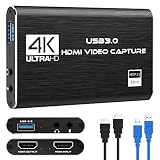
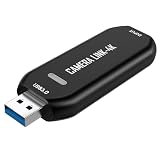
Budget options are useful when your goal is straightforward 1080p60 capture. A around $25 4K HDMI-to-USB 3.0 capture device may make sense for occasional recording, a basic camera feed, or an older console, provided its supported input, capture resolution, and passthrough behavior match your needs. It should not be assumed to provide the same high-refresh features, build quality, or compatibility margin as a premium model.
For a high-refresh external setup, the around $250 Elgato 4K X is an example of the category aimed at HDMI 2.1 and 4K144 passthrough. That capability matters more than a vague “ultra-low latency” label if your display and console or PC can use it. Buy based on the exact resolution and refresh rate you intend to pass through, not the maximum number printed on the box.
Cost Over 5 Years
The purchase price is only part of the five-year cost. A typical internal solution costs about $130–$300 for the card itself, assuming you already own a compatible desktop. Add $15–$40 for two dependable HDMI cables if your current cables are not rated for your intended resolution and refresh rate. Over five years, a fixed internal setup may therefore total roughly $160–$340, with little likely replacement cost beyond cables.
An external setup can start at $25–$80 for basic 1080p capture, land around $120–$250 for more capable 4K hardware, and need $20–$60 in cables or adapters. A laptop owner may spend less overall because no desktop upgrade is required. But if USB ports wear out, cables get lost, or the card travels between rooms, plan on one replacement cable or adapter during that period.
Power use is modest either way. Many external capture cards draw roughly 2–5 watts through USB; an internal card adds a small load to the desktop. The larger energy cost is the recording computer and display, not the capture hardware. A $5 cable organizer, under-desk tray, or media-console cable sleeve can be a better long-term investment than an unnecessarily expensive card.
Which One for Your Home
Small apartment
Choose an external capture card if your gaming happens at a TV and your computer is a laptop or shared machine. It can fit in a drawer, move with the console, and avoid dedicating a large desktop tower to a tight room. Prioritize passthrough that matches your TV or monitor, then use short HDMI cables to keep the entertainment area orderly.
Family with kids or pets
Choose an internal card when a desktop is available and the setup will stay in one spot. The protected installation is less vulnerable to tugged cords, spills, and curious hands. If you need external flexibility, secure the device in a ventilated media cabinet or mount it beneath a desk, leaving slack but not loose loops in the cables.
Rental
Choose external. No case installation, permanent mounting, or room modification is required. It is easy to take to another room or pack when moving. Use removable cable clips and a small labeled pouch for the USB and HDMI leads so the temporary setup remains quick to rebuild.
Long-term home
Choose internal for a dedicated office, gaming den, or dual-PC studio. The cleaner appearance, protected hardware, and stable desktop connection justify the extra installation effort. Select a card with passthrough that accommodates the display you expect to own for several years, rather than buying only for today’s minimum resolution.
FAQ
Is an internal capture card always lower latency than an external one?
No. Both can provide a responsive gaming experience through HDMI passthrough. Internal PCIe cards often have fewer connection variables for the capture computer, but the display path, software preview, resolution, refresh rate, USB port quality, and system settings all affect what you notice.
Can I play through OBS with a capture card?
You can, but it is usually not the best choice for fast games because the preview can add visible delay. Connect the card’s HDMI output directly to your gaming monitor or TV for play, and use OBS on the computer for recording, streaming, and scene management.
Do I need HDMI 2.1?
Only if your source and display use higher-bandwidth features such as 4K at high refresh rates. For standard 1080p60 or 4K60 use, an appropriate HDMI 2.0-class setup may be sufficient. Verify the card’s specific passthrough and capture specifications separately.
Will an external capture card work with any laptop?
Not automatically. The laptop needs a compatible USB port, adequate processing capability, supported operating system, and available storage for recordings. Avoid relying on a low-speed USB port or a crowded hub, and confirm that your chosen software recognizes the card before planning a permanent installation.