If you want to stream console gameplay to Twitch, YouTube, or Discord, you quickly hit a fork in the road: do you run your PS5 or Xbox directly to the TV with a simple HDMI passthrough and let the console handle the broadcast, or do you route the signal through a capture card to a PC for a more produced stream? Both get your game on screen, but they create very different setups at home. In 2026, consoles have better built-in streaming than ever, while capture cards have gotten cheaper and more compact, so the choice comes less down to whether each works and more down to how you want to play, stream, and live with the gear in your room.
Our Top Picks
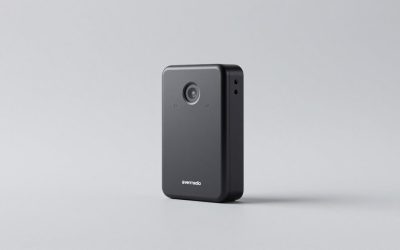
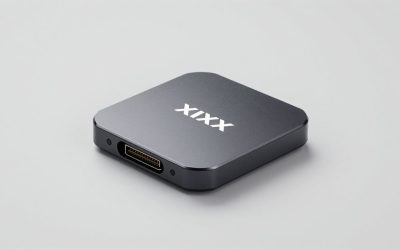
 Zowietek 4K Video Streaming Encoder/DecoderStandard2.68 x 0.87 x 4.84 inches0.4 PoundsCheck on Amazon


Top 3 picks at a glance


Quick Verdict
Choose a capture card if you want overlays, multi-source layouts, higher-quality recordings, and full control in software like OBS Studio. It is the right call for anyone who wants to grow a channel, record 1080p60 cleanly for editing, or stream with a face cam, alerts, and chat on screen.
As an Amazon Associate we earn from qualifying purchases at no extra cost to you.


Choose direct HDMI passthrough if you want the simplest, lowest-latency way to play on your TV and stream casually without a PC in the chain. You plug console to TV, hit the console’s broadcast or share function, and you are live with almost no extra hardware, cables, or power draw. For casual streaming in a living room or small setup, passthrough wins on simplicity and cost.
Bottom line: capture card = control and quality, passthrough = simplicity and speed. If you already have a capable PC or laptop nearby, the extra investment in a capture card pays off. If you do not, passthrough keeps your home setup clean and affordable.
Side by Side
| Feature | Capture Card | Direct HDMI Passthrough |
|---|---|---|
| Comfort | More to manage at first. You need OBS or similar software, audio routing, and scene setup. Once configured, streaming is push-button, but initial learning curve is higher. | Very comfortable for everyday play. No software to learn. Use the controller to start and stop a broadcast and keep your normal couch or desk viewing position. |
| Durability | Solid-state dongle or internal card with no moving parts. USB 3.0 sticks last for years. Premium cards like PCIe or higher-end USB units are built for daily 8 to 10 hour use. Typical lifespan 4 to 7 years. | Maximum durability. A straight HDMI cable or a tiny passthrough adapter like an EDID emulator has almost nothing to fail. Lifespan matches your cable, often 5 to 10 years. |
| Price Range | $25 to $200 for most home streamers. Budget 1080p60 HDMI to USB 3.0 sticks start around $25, mid-range 4K60 passthrough cards like the Elgato 4K S sit near around $150, and prosumer NDI encoders like the ZowieBox 4K HDMI NDI run about $199. | $0 to $15 if you already own a TV and HDMI cable. Adding a dedicated passthrough helper such as the AviWrap HDMI Passthrough EDID Emulator at around $14 is the only extra cost for most homes. |
| Maintenance | Occasional driver and firmware updates, OBS updates, and cable checks. Dust the USB ports and keep the card cool. Takes about 15 minutes per month. | Virtually none. Keep HDMI contacts clean and replace a cable if it frays. No software to update. |
| Space Needed | Compact but needs a PC or laptop nearby. A USB stick is about 3.2 x 1.1 x 0.5 inches and 1.5 to 3 ounces. A larger desktop card like the Elgato 4K S is about 4.4 x 2.8 x 0.7 inches and 3.5 ounces, plus a PC that draws 60 to 150 watts while streaming. | Near zero. Console to TV with a 6-foot HDMI cable. An inline adapter adds about 2.1 x 1.0 x 0.5 inches and 0.6 ounces, draws under 1 watt, and hides behind the TV. |
| Look | Minimalist if you use a stick, more technical if you have a PC with cables, webcam, and mic on the desk. Fits a dedicated streaming corner or office better than a styled living room. | Cleanest look. No extra boxes on the media console. One cable in, one cable out, and the TV remains the focal point. |
| Resale | Good resale for known brands. Budget sticks resell for $10 to $15, name-brand 4K cards hold 50 to 65 percent of value after two years. | No real resale. Cables and small adapters are consumables, though you can reuse them for any HDMI device. |
| Best For | Streamers who want overlays, webcams, separate audio tracks, local recordings for YouTube edits, and platform flexibility. | Casual streamers, families, or anyone who prioritizes zero-latency gameplay on the big screen over production features. |
Where Capture Card Wins
A capture card puts your console’s HDMI signal where you can actually produce it. Instead of relying on the console’s built-in broadcast, you capture clean 1080p60 or 4K60 video to a computer and control everything in OBS, Streamlabs, or similar software.
That control is the biggest advantage. You can layer a webcam, add custom overlays, alerts, chat boxes, and sponsorship graphics, and mix microphone audio separately from game audio. You can record a lossless local file while you stream, which gives you far better footage for TikTok clips or YouTube edits than the compressed broadcast the console uploads directly. For creators, that local 1080p60 or 4K30 file is essential.
Capture cards also solve platform limits. Consoles natively stream to only a few services and cap bitrate. With a card, you can multistream, pick your own bitrate up to 12,000 Kbps, and stream to Discord, Twitch, and YouTube at the same time. Latency to the stream can be tuned, and gameplay latency stays low if you use the card’s passthrough HDMI out to your TV. Most modern cards offer zero-lag passthrough at 4K60 with HDR, so you play on the TV exactly as you would with a direct connection, while the USB feed to the PC handles the broadcast at 1080p60.
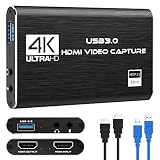
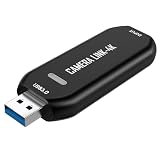
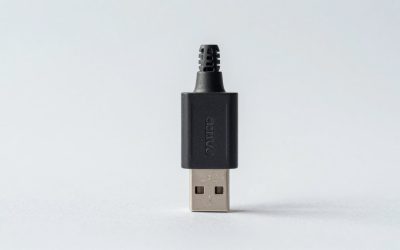
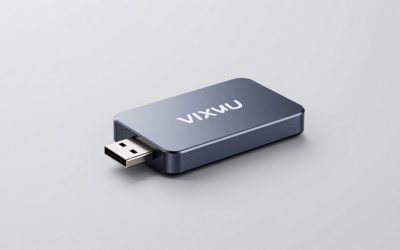
Hardware options now fit any desk. A basic 4K HDMI Video Capture Card that does 1080p60 over USB 3.0 for about $25 is the size of a flash drive, weighs under 2 ounces, draws 2 to 3 watts, and works without a power brick. It is perfect for Switch, PS4, or PS5 at 1080p. Stepping up to something like the Elgato 4K S at around $150 gets you reliable 4K60 passthrough, 1080p60 capture, VRR support, and better drivers for long sessions. For a home network setup, a device like the ZowieBox 4K HDMI NDI Video Encoder at $199 can send video over Ethernet as NDI, so your gaming console can be in the living room while the streaming PC is in another room without a long USB cable.
If your goal is quality, branding, and editing flexibility, a capture card is the only path that gives you full ownership of the signal.
Where Direct Hdmi Passthrough for Console Streaming Wins
Direct HDMI passthrough means the console connects straight to the TV or monitor, with no computer in the middle. For streaming, you use the console’s built-in broadcast feature or simply play locally while a friend watches via Share Play or remote view.
The win here is absolute simplicity and the best play experience. You get the lowest possible input lag, typically 8 to 15 ms on a modern TV in game mode, because there is no capture pipeline to add delay. There is no PC to keep on, no software to crash mid-stream, and no audio sync to fix. You sit down, turn on the console, and you are playing at full 4K60 or 4K120 if your TV supports it.
It is also the most home-friendly option. A direct connection draws no extra power beyond the console and TV. A capture setup with a laptop or desktop adds 45 to 150 watts continuously, plus fan noise in a living room. Passthrough is silent and cool. Cable management is one HDMI 2.0 or 2.1 cable, usually 4 to 6 feet, versus a card setup that needs HDMI in, HDMI out, and a 3 to 6 foot USB 3.0 cable to the PC.
Small helpers make passthrough even more reliable. Many new TVs and soundbars cause handshake issues or force a lower refresh rate. A tiny inline solution like the AviWrap HDMI Passthrough EDID Emulator for around $14 locks the signal to 4K at 60Hz and stabilizes the handshake, so your console stops flickering or dropping to 1080p when you switch inputs. It is a 2-inch dongle that lives behind the TV and needs no power.
For households where the TV is shared, where a PC is not always available, or where the streamer just wants to go live occasionally without building a studio, direct passthrough keeps the living room looking like a living room and the workflow under three button presses.
Cost Over 5 Years
Direct HDMI passthrough costs almost nothing to own. Assume you already have a console and TV. A quality 6-foot HDMI 2.1 cable costs $10 to $18 and lasts the full five years. If you add an EDID emulator for stability, that is around $14 once. Electricity add is zero. Five-year total: $10 to $33.
A capture card setup starts higher but stays modest if you already own a PC. A budget path: a 1080p60 HDMI to USB 3.0 stick at around $25, plus a spare HDMI cable at $12, totals about $38 upfront. No subscription needed if you use free OBS Studio. Power for the card itself is 2 to 4 watts. If you stream 6 hours per week, that is about 1.2 kWh per year, or less than around $0 in electricity annually. Five-year total: $38 to $45.
A mid-range path: an Elgato 4K S at around $150 plus a good HDMI 2.1 cable at $15 totals $162 upfront. Over five years, you might replace one USB cable for $10. Five-year total: $162 to $172.
A prosumer network path: a ZowieBox 4K HDMI NDI encoder at $199, plus two short HDMI cables and an Ethernet cable for about $25, totals $224 upfront. It draws about 5 to 7 watts, or roughly 2 kWh per year for the same 6-hour weekly schedule. Five-year total: $224 to $235.
The hidden cost is the PC. If you need to buy a streaming laptop or desktop just to run the capture card, add $600 to $1,200 and 60 to 150 watts of continuous draw, which can add $18 to $45 per year in power at average American rates of around $0 per kWh. If the PC already lives in your home for work or school, the capture card itself remains a low-cost, long-life accessory.
Which One for Your Home
The right choice depends less on specs and more on your room, your household, and how often you plan to hit that live button.
Small Apartment
Go with direct HDMI passthrough if space is tight and your TV is your desk and entertainment center. You avoid adding a PC tower, mic arm, and cable clutter in a 400 to 600 square foot layout. A single HDMI cable keeps the media stand clean and leaves floor space open. If you do want to stream sometimes, a pocketable around $25 USB capture stick that lives in a drawer until needed is the best compromise. Plug it in for a weekend stream, then unplug and reclaim the space.
Family with Kids or Pets
Direct passthrough is safer and sturdier for shared living rooms. Fewer cables means fewer things for kids or pets to snag. You can start a broadcast from the controller without letting kids near a PC with expensive peripherals. If you want to record gameplay for kids to rewatch or for you to edit later, use a budget capture card but mount it behind the TV with Velcro and route cables along the wall with a $5 cable channel to keep hands and paws away.
Rental
Choose passthrough if you cannot drill, mount, or run Ethernet through walls. Your entire setup is console, TV, and one HDMI cable, all of which move with you. No holes, no landlord issues. A small EDID emulator dongle moves too and prevents HDMI handshake problems with the rental’s older TV or soundbar. If you already own a laptop, a USB capture card is still renter-friendly because it requires no permanent installation.
Long-Term Home
This is where a capture card shines. If you have a dedicated office, den, or basement where a desk can stay set up, invest in a proper card with 4K60 passthrough to your TV and a clean USB 3.0 run to a desktop. You can permanently route cables through a media console, set up lighting and a microphone once, and build a workflow that lasts for years. Over a five-year stay, the $147 to $199 for a reliable card or NDI encoder is a small price for the ability to record, edit, and stream at the quality that grows an audience.
FAQ
Does a capture card add lag to my gameplay?
Not if you use its HDMI passthrough correctly. You connect console to capture card input, then capture card output to TV. You play off the TV feed, which is near zero-lag passthrough at up to 4K60, while the USB feed to the PC can be 50 to 150 ms behind without affecting your hands. Playing by watching the preview window in OBS will feel delayed, so always play on the TV itself.
Can I stream without a PC using just direct HDMI passthrough?
Yes. PS5, Xbox Series X and S, and Nintendo Switch all handle direct output to the TV. For streaming, PS5 and Xbox have built-in broadcast to Twitch and YouTube directly from the console over your home Wi-Fi or Ethernet. Quality is capped by the console, usually 1080p60 at 6,000 to 9,000 Kbps, and you cannot add custom overlays, but it requires no extra hardware.
What internet speed do I need for each option?
Both need the same upload speed because the stream still goes to the internet. For 1080p60, plan for at least 8 to 12 Mbps of stable upload. For 720p60, 5 to 7 Mbps is enough. Use wired Ethernet from the console or streaming PC to the router if possible. Wi-Fi can work, but a single 6-foot Cat6 cable reduces dropped frames far more than any card upgrade.
Do I need 4K capture if I play at 4K?
No for most home streamers. Viewers watch the vast majority of console streams at 1080p60, and Twitch and YouTube transcode to 1080p anyway. A card that passes 4K60 to your TV but captures at 1080p60 gives you the best of both: you see full 4K HDR on the couch while you stream and record a crisp 1080p file that is easier on your PC and internet. Only choose full 4K capture if you specifically produce 4K YouTube content and have a PC that can encode it.