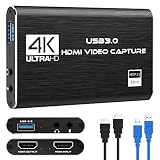
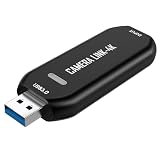
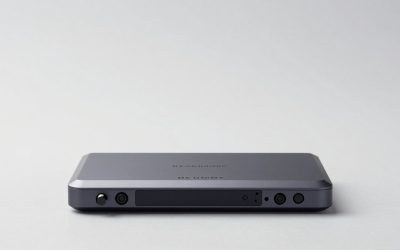
Our Top Picks


The Short Answer
For most single-PC streamers, a capture card is not worth it — unless you’re playing competitively at high frame rates while streaming at the same time. That’s the one condition: if your games push 144+ FPS on a high-refresh monitor and you refuse to drop a single frame when OBS is running, an internal PCIe capture card with 4K60 passthrough solves the encoder load problem. Everyone else can get better results by letting the GPU’s built-in hardware encoder (NVENC, AMF, or Quick Sync) do the work for free.
What You Actually Get
A capture card is a video passthrough and recording device. In a dual-PC setup, it carries gameplay from your gaming PC into a streaming PC. In a single-PC setup, its role is different — and often misunderstood:
As an Amazon Associate we earn from qualifying purchases at no extra cost to you.


- Passthrough: The card sits between your console or camera and your monitor, passing the signal through with minimal added latency (budget external cards add roughly 50–100ms; quality internal cards with 4K60 passthrough stay in the 60–120ms range, with ultra-low latency models near 60ms).
- Loop-out recording: A clean copy of your gameplay reaches OBS without the GPU running a second encoding pass — but only if you’re capturing from a second source. A single PC can’t capture its own HDMI output with a card in the same machine and gain anything; the signal has to leave the PC and come back.
- Console and camera input: Most buyers of a $25 external card actually want it to bring a PS5, Xbox, or HDMI camera into OBS — which is a completely different use case than “capturing your own PC.”
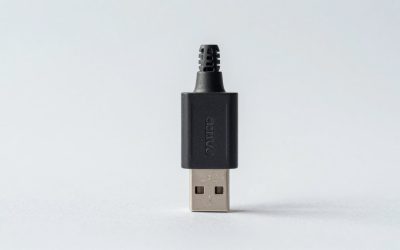
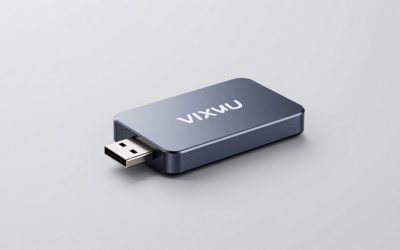
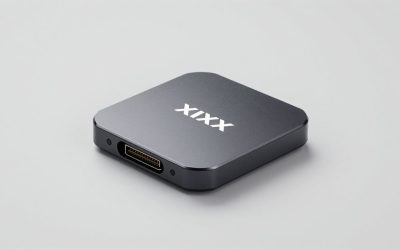
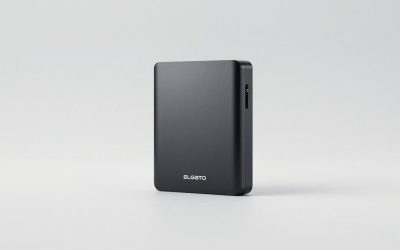
Physical specs vary by tier. Budget external cards are typically dongle-sized (around 2.5 x 1 x 0.5 inches, under 2 ounces) and draw power from the USB 3.0 port itself — no external wattage needed. Internal PCIe cards are full-height or half-height boards, usually 5–7 inches long, weighing 4–6 ounces, drawing roughly 5–10W from the PCIe slot, and requiring one free x4-or-larger slot plus clearance for the HDMI input cable.
Pros
- Offloads encoding: With a dual-PC or console setup, your gaming machine never touches the stream workload — frames stay buttery at 144+ FPS.
- Clean console capture: The only realistic way to stream a PS5 or Xbox Series X in 1080p60 or 4K HDR with overlays and alerts.
- Zero-cost alternative to an encoding PC: A around $150 internal card is far cheaper than building a dedicated streaming rig ($600+).
- 4K60 passthrough: Modern internal cards pass native 4K at 60Hz to your monitor while recording 1080p60 downstream.
- Camera flexibility: Turns any HDMI camcorder or mirrorless camera into a webcam-grade source for under $30.
Cons
- Pointless in most single-PC configs: A PC cannot meaningfully capture its own output through a card plugged into itself. If your whole setup is one machine playing and streaming PC games, the card has no source to capture.
- Budget cards cap at 1080p60 recording: The around $25-tier dongles pass 4K through but record only 1080p60 — and add noticeable input lag for competitive play.
- Cable clutter and failure points: One more HDMI run, one more thing to troubleshoot when OBS shows a black screen.
- Internal cards need space and a free slot: Small form factor builds often can’t fit a full-length PCIe board beside a triple-slot GPU.
- Driver quirks: Cheaper UVC-based cards occasionally drop sync or audio after Windows updates.
Who Should Buy It
Buy an internal card if you’re a console streamer, you run a genuine dual-PC setup, or you’re a single-PC gamer who also owns a PS5/Xbox and wants one device to handle everything. Buy a cheap external card if your goal is simply getting a camera or console into OBS — at around $25, it’s one of the cheapest useful upgrades in streaming. By 2026, hardware encoders on modern GPUs are so efficient that most PC-only streamers genuinely don’t need dedicated capture silicon at all.
Who Should Skip It
Skip it if you stream PC games from a single machine using NVENC or AMF — your GPU encoder is already free, fast, and adds roughly 1–3% FPS overhead at 1080p60. Skip it if you’re chasing lower stream latency: a card doesn’t reduce encoding lag, it adds a video path. And skip it if your monitor and GPU are both HDMI 2.1-bound for 4K120 gaming; most cards in this price bracket top out at 4K60 passthrough.
Cheaper Alternatives
| Option | Cost | Trade-off |
|---|---|---|
| GPU hardware encoder (NVENC/AMF/Quick Sync) | $0 | Uses 1–3% GPU headroom; no console input |
| OBS recording + manual upload | $0 | No live chat or overlay interactivity |
| Used previous-generation internal card | $50–$90 | Usually 1080p60 max passthrough, no warranty |
| USB webcam or phone-as-webcam app | $0–$60 | No HDMI camera quality; software latency varies |
| HDMI-to-USB dongle capture card | $20–$40 | 1080p60 recording ceiling; 50–100ms added latency |
FAQ
Can a capture card help a single-PC setup at all?
Only indirectly. The card can’t capture your own PC’s output while installed in that same PC, so it won’t reduce encoding load. It helps a single-PC streamer only when you’re also bringing in a console, camera, or a second machine.
Do capture cards add input lag?
Some, yes. Quality internal cards with ultra-low latency passthrough add around 60ms or less in the passthrough path; budget USB dongles can add 50–100ms. For casual and story-driven games it’s imperceptible; for ranked shooters, use a monitor passthrough or skip the card entirely.
Is a $25 capture card good enough to start?
For consoles and cameras at 1080p60, absolutely — it’s the smartest first purchase. Just don’t expect 4K recording, HDR, or competitive-grade latency at that price.
Internal or external capture card?
Internal PCIe wins on latency, sustained 4K60 passthrough, and reliability for permanent setups. External USB 3.0 wins on portability, price, and laptop compatibility. If your rig never moves, go internal.