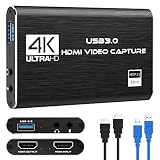
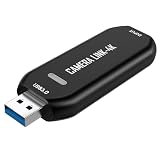
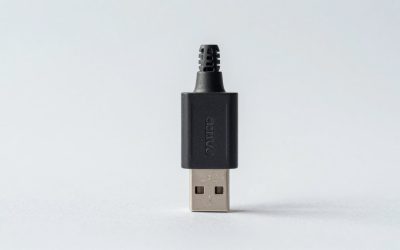
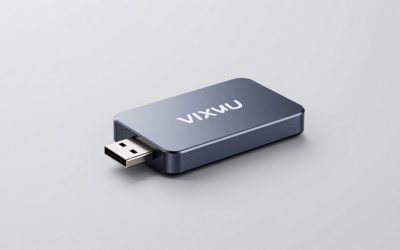
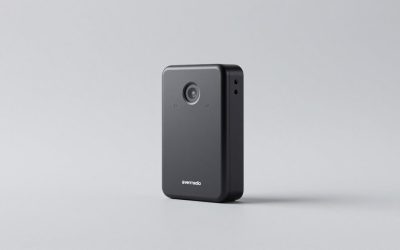
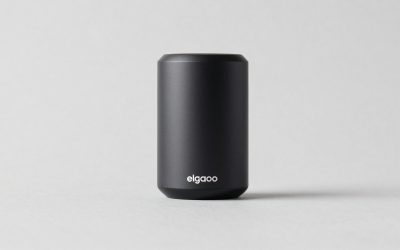
Shopping for a capture card in the 4K 60fps space is confusing because the product listings themselves are misleading. Scroll through any marketplace and you’ll see dozens of cards labeled “4K” that cost around $21 to around $25 — and here’s the catch: nearly all of them can only *pass through* 4K to your monitor while *capturing* at 1080p 60fps. That distinction is the single biggest mistake buyers make. If your goal is genuine 4K 60fps recordings and streams, those budget dongles won’t get you there.
The second common mistake is ignoring your USB and PC limitations. A true 4K60 card pushes roughly 12 gigabytes of data per minute uncompressed, and it needs a USB 3.0 (USB 3.2 Gen 1, 5 Gbps) port minimum — ideally USB 3.2 Gen 2 at 10 Gbps. Plug a capable card into an old USB 2.0 port and it will stutter, drop frames, or refuse to capture above 1080p. The third mistake is buying more card than your stream PC can handle: a 4K60 PCIe internal card works best with a dedicated encoding machine or a desktop with a recent six-core CPU, not a laptop streaming on the side.
As an Amazon Associate we earn from qualifying purchases at no extra cost to you.



This guide walks through what actually matters so you can match the card to your setup — whether that’s a $25 passthrough dongle for casual 1080p clips or a around $37 card like the Guermok 4K@60FPS unit that steps up to 2K@120FPS capture, all the way to the $150–$300 internal cards serious streamers run heading into 2026.
Our Top Picks

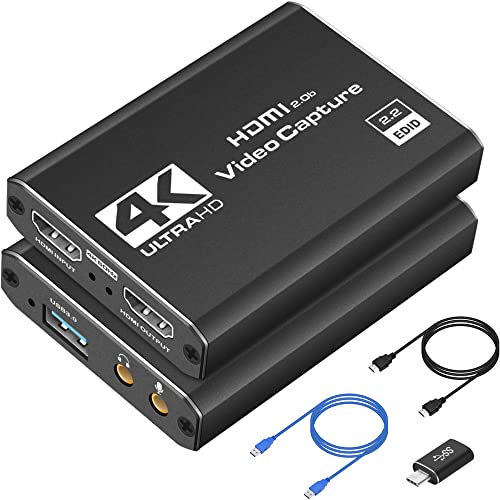

Top 3 picks at a glance
Decide These 3 Things First
1. Do you actually need 4K60 capture, or 4K60 passthrough? Passthrough means the card sends 4K 60Hz (or even 4K 120Hz on better models) to your TV or monitor while only recording at 1080p 60fps. If you play on a 4K TV and publish mostly 1080p streams, a $22–$26 passthrough card is genuinely fine. If you upload 4K YouTube videos or want crisp downsampled 1440p output, you need real 4K60 capture, which starts around $100.
2. Internal PCIe or external USB? Internal cards (half-height or full-height PCIe x4) offer lower latency — typically 60–90 milliseconds of pipeline delay versus 100–150 ms for USB dongles — and never fight other devices for USB bandwidth. External cards are easier to move between a desktop and a laptop and require no case access. Dual-PC streamers usually go internal; single-PC streamers and console players on desks go external.
3. What’s your encoder situation? Streaming 4K60 means encoding a massive signal. A single PC needs an NVENC-equipped GPU (RTX 20-series or newer, or comparable AMD AV1 encode) and at least 16 GB of RAM. If you’re running OBS on an aging quad-core machine, no capture card will fix your stream — budget for the PC first, or drop to 1080p60 output, which is still the standard for Twitch anyway.
Connection Type and Bandwidth
HDMI version determines what signal the card can ingest. Budget dongles in the around $21–around $25 range use HDMI 1.4, which tops out at 4K at 30Hz input and 1080p at 60fps capture. Cards with HDMI 2.0 accept 4K at 60Hz input; HDMI 2.1 models accept 4K at 120Hz, which matters if you game at high refresh rates and want the passthrough to match your display.
On the output side, USB 3.0 (5 Gbps) is the floor. A 4K60 capture in a compressed format like MJPEG or H.264 over UVC needs sustained throughput near 3–4 Gbps, so a shared USB hub or an unsaturated front-panel header will cause dropped frames. Look for USB 3.2 Gen 2 (10 Gbps) on cards above $60, and use a direct motherboard port — rear I/O, not a case front panel. Internal PCIe cards should be x4 lanes minimum; avoid anything advertising x1 for 4K work.
Weight and size are worth a glance for external units: typical dongle cards measure around 3.5 x 2.4 x 0.8 inches and weigh 2.5–3.5 ounces, which is fine next to a console but can strain a laptop port. A short pigtail cable design puts less leverage on the connector.
Latency and Real-World Performance
Capture latency matters in two scenarios: speedruns with reaction-dependent sections, and rhythm games. Passthrough latency — the delay from console to your monitor through the card — is what affects gameplay. Budget USB dongles commonly run 100–150 ms, which is playable for most genres but noticeably soft in fighting games or shooters. Mid-tier cards ($60–$150) get passthrough under 80 ms, and premium internal cards ($150–$300) reach 60 ms or lower.
Capture latency — the delay between what happens on screen and what lands in your recording — matters less for streams, since viewers only see the recorded feed. For pure recording work, prioritize sustained throughput over raw latency. Watch for advertised “zero latency” claims; that phrasing usually describes loopout passthrough only, not the captured stream.
Heat is real at 4K60. External dongles without an aluminum shell can thermal-throttle after 30–45 minutes, causing frame drops. Metal-cased units in the around $37 range — like the Guermok — dissipate passively and hold steadier long sessions. Power draw is modest, typically 1.5–2.5 watts over USB, so no external power is needed.
Codec and Software Compatibility
Almost every card in this space is UVC (USB Video Class) compliant, meaning it shows up as a webcam in OBS Studio, Streamlabs, vMix, and Mac OS QuickTime without drivers. That’s what you want — driver-dependent cards are a support headache, especially on Mac and Linux. Confirm the listing explicitly says “plug and play” or “UVC.”
Codec choice affects your CPU load. Cards that output raw MJPEG leave your system to compress the footage, which is flexible but heavy: expect 15–25% CPU overhead on a mid-range processor at 1080p60. Cards with hardware H.264 or H.265 encoding offload that work, keeping CPU usage under 5%, but lock you into that codec. For 4K60 recording, hardware encoding on the card is worth the price jump.
Price Tiers: What Your Money Buys
Budget ($20–$40): The three example dongles at around $21, around $23, and around $25 all follow the same formula — 4K30 HDMI input, 4K60 loopout passthrough, 1080p60 capture, USB 3.0, aluminum or plastic shell. The around $37 Guermok adds 2K@120FPS capture capability, making it the standout of the budget tier for high-refresh 1440p work. This tier is right for casual streamers, DSLR webcam setups, and anyone publishing at 1080p.
Mid-tier ($60–$150): Expect true 4K60 capture, HDMI 2.0 input, zero-lag passthrough under 80 ms, and often hardware H.264 encoding. This is the sweet spot for console streamers producing 4K YouTube content.
Premium ($150–$350): Internal PCIe cards with HDMI 2.1, 4K60 HDR capture, sub-60 ms latency, and multi-card support for dual-PC builds. Buy here only if you’ve outgrown the mid-tier — most streamers never need to.
Warranty and Support
Budget dongles typically ship with 12-month limited warranties and email-only support, often from overseas sellers with slow response times. Mid-tier and premium brands usually offer 18–24 months, replacement-first policies, and firmware updates — which matter, since a firmware fix can resolve 4K60 handshake issues with specific consoles. Keep your receipt, and test the card thoroughly within your return window (usually 30 days) with the exact console or camera you plan to use, since HDMI handshake quirks are the most common real-world failure.
Spec Checklist
| Spec | Budget ($20–$40) | Mid ($60–$150) | Premium ($150–$350) |
|---|---|---|---|
| Max input | 4K @ 30Hz | 4K @ 60Hz (HDMI 2.0) | 4K @ 120Hz (HDMI 2.1) |
| Max capture | 1080p 60fps | 4K 60fps | 4K 60fps HDR |
| Passthrough latency | 100–150 ms | 60–90 ms | Under 60 ms |
| Connection | USB 3.0 dongle | USB 3.2 Gen 2 or PCIe x4 | Internal PCIe x4 |
| Encoding | MJPEG (CPU-based) | H.264 hardware optional | H.265/HDR hardware |
| Build | Aluminum or plastic shell | Metal shell, pigtail cable | Full-height PCIe bracket |
| Best for | 1080p streams, DSLR webcam | 4K YouTube, console streaming | Dual-PC, HDR workflows |
Red Flags
- “4K” with no capture resolution listed. If the spec sheet only says “4K input” and buries “1080P 60FPS record,” it’s a passthrough-only device at heart.
- No HDMI version stated. Ambiguous HDMI specs usually mean HDMI 1.4, which caps input at 4K30.
- “Zero latency” claims. Physically impossible; treat any listing using this phrase skeptically across the board.
- USB 2.0 connectors disguised as USB 3.0. Check photos — a real USB 3.0 port is usually blue or marked SS. Micro-USB or USB-C-to-USB-A at 480 Mbps won’t sustain 1080p60 reliably.
- Plastic shells on dongles. At sustained 4K60 passthrough, passive heat buildup causes dropped frames after long sessions.
- No Mac/Linux/driver-free mention. Avoid anything requiring a Windows-only driver download if you stream from anything else.
- Reviews mentioning green screens or audio drift. These are classic symptoms of bandwidth-starved clones of the same generic board.
FAQ
Do I need a 4K capture card to stream on Twitch?
No. Twitch tops out at 1080p60 for most streamers, so a budget 1080p60 capture card with 4K passthrough — like the around $21–around $25 units listed above — handles the job. You’ll play at 4K on your display while streaming a clean 1080p feed. Buy true 4K60 capture only for YouTube uploads or archival recording.
Why does my capture card drop frames after 20 minutes?
Almost always heat or bandwidth. Plastic-shelled dongles thermal-throttle during long sessions, so switch to a metal-cased unit or add airflow. If heat isn’t the issue, move the card to a rear motherboard USB port — front-panel headers and hubs routinely starve capture cards of bandwidth.
Can one PC handle 4K60 capture and streaming at the same time?
Only comfortably with modern hardware: an eight-core CPU or a GPU with a dedicated encoder chip, 32 GB of RAM, and an NVMe drive writing at 1 GB/s or faster for recordings. Otherwise, capture at 4K and downscale your stream output to 1080p60 in OBS, or consider a two-PC setup.
Is a $25 capture card any good, or should I spend more?
For 1080p60 streaming and using a camera as a webcam, budget cards are legitimately good value and cost less than a nice HDMI cable from big brands. Step up past $60 when you need real 4K60 capture, lower latency for competitive play, or hardware encoding to reduce CPU load — not before.