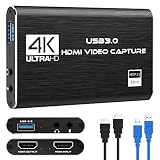
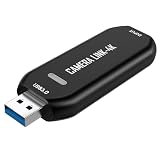
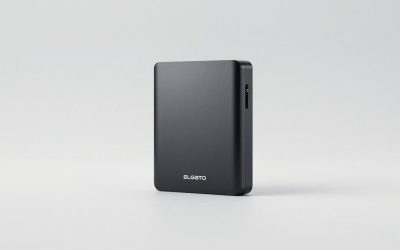
If your gameplay looks smooth on your TV but stuttery and delayed on your monitor while a capture card is connected, you are dealing with a laggy passthrough problem. It is one of the most common complaints among new streamers, and it usually comes down to one thing: the signal is being routed or processed incorrectly. When passthrough lags, you get delayed aim response, choppy frame delivery, audio drift during recordings, and in bad cases, dropped frames that ruin an otherwise clean stream. The fix is almost always a matter of settings, cabling, or connection order rather than buying new gear. This guide walks through the process step by step so your monitor feed responds as fast as your console or PC actually is.
Our Top Picks


What You Need
| Item | Why You Need It | Optional? |
|---|---|---|
| HDMI 2.0-certified cables (2) | Cheap or unmarked cables are the number one cause of passthrough lag and black-screen flicker. Use certified High Speed or Ultra High Speed HDMI, ideally under 6 feet (1.8 m) in length. | No |
| USB 3.0 port on your computer | A 1080p 60FPS capture stream needs roughly 4–5 GB/s of sustained USB bandwidth headroom; a USB 2.0 port will bottleneck instantly. | No |
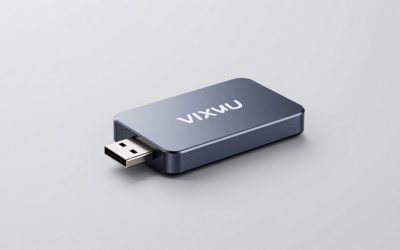
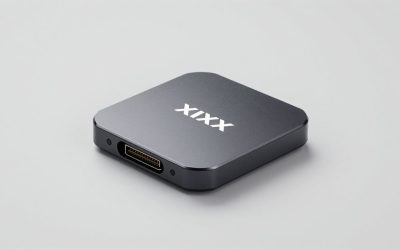
| A budget 4K-capable capture card | Cards like the generic 4K HDMI units around $19–$26 pass 4K60 through to the monitor while capturing at 1080p 60FPS, which is the sweet spot for most setups. | No |
| OBS Studio or similar software | Free software lets you verify actual capture frame rates and spot dropped frames while you test changes. | No |
| Monitor with a game or low-latency mode | Disabling extra processing on the display itself cuts several milliseconds of delay. | Helpful but not required |
| Short USB extension cable | Lets you reposition the card away from other USB 3.0 devices and 2.4 GHz receivers that cause interference. | Yes |
Step-by-Step
1. Rewire the connection in the correct order (5 minutes)
Connect the console or camera’s HDMI output to the capture card’s HDMI input. Then run a second HDMI cable from the capture card’s HDMI output (passthrough port) directly to your monitor. Finally, plug the capture card’s USB end into a USB 3.0 port on your computer — ports marked blue or labeled SS (SuperSpeed). A very common mistake is running the console to the monitor first and splitting the signal afterward; that arrangement forces the card to compete with the display for the source signal and often introduces lag.
As an Amazon Associate we earn from qualifying purchases at no extra cost to you.


2. Verify your cables are truly high speed (5 minutes)
Swap in cables certified for 4K 60Hz. If your passthrough smooths out immediately, the original cables were the problem — they were silently downgrading the signal. Keep replacement cables under 6 feet where possible; long passive HDMI runs lose signal integrity and can force handshake fallbacks that look like stutter.
3. Confirm you are on a USB 3.0 port (5 minutes)
On Windows, open Device Manager, expand Universal Serial Bus controllers, and look for “USB 3.0” or “xHCI” entries. Plug the card into a port wired directly to one of those controllers. Front-panel ports on desktop cases are sometimes USB 2.0 only, even when the rear ports are 3.0. A card on USB 2.0 will cap out near 40 MB/s and drop frames at 1080p 60, which appears as passthrough or capture lag.
4. Set the capture card to passthrough mode (3 minutes)
Many budget 4K cards pass video through automatically when powered, but some require the USB connection to be active for passthrough to work. Confirm the card is receiving power and that its indicator light is on. If your card has a software utility, ensure passthrough or “TV mode” is enabled rather than a capture-only mode.
5. Enable game mode on your monitor (3 minutes)
Open your monitor’s on-screen menu and switch the picture preset to Game, Low Latency, or FPS mode. This disables motion smoothing and other processing that adds 20–50 ms of delay. While you are there, confirm the monitor reports the input as 4K at 60Hz (or 1440p at your display’s maximum) rather than dropping to 1080p — a handshake fallback looks exactly like laggy passthrough.
6. Tune OBS or your recording software (10 minutes)
In OBS, add the card as a Video Capture Device source. Set the resolution/fps type to Custom and choose 1920×1080 at 60 FPS to match a 1080p 60FPS card. If your source is 4K, set the card’s input scaling rather than forcing the monitor signal down — this preserves the clean 4K60 feed on the display while the card captures at 1080p. Disable any “buffering” or hardware decode toggles one at a time and test after each change; some drivers behave better with decoding off.
7. Test with a frame counter (10 minutes)
Enable OBS’s stats dock (View > Docks > Stats) and watch render and missed frame counts during 5 minutes of gameplay. Then unplug the card entirely and play directly to the monitor to establish your baseline feel. Reconnect and compare. If input delay is now imperceptible and dropped frames stay near zero, you are done. If not, move to a different USB port or replace the HDMI cables — those two changes resolve the large majority of cases.
Mistakes to Avoid
Do not route the console through a monitor’s HDMI output port or try to split one source cable between a monitor and capture card with a passive splitter — HDMI splitters break HDCP handshakes and add delay. Avoid USB hubs for the capture card; connect it directly to the computer. Do not use a cable longer than about 10 feet (3 m) on the passthrough run. Do not chase lag by raising streaming bitrate — encoder settings affect the recorded stream, not the passthrough delay on your monitor. Finally, do not ignore firmware or driver updates for your capture device; a small utility update has fixed handshake bugs for many budget cards.
How Often
Passthrough setup is not routine maintenance — once configured correctly, it should stay fixed. Recheck your chain whenever you change monitors, move your setup, swap cables, or update graphics drivers. Give the whole chain a quick inspection every six months: reseat the HDMI and USB connections, and verify the monitor still reports full resolution and refresh rate. If you upgrade to a 120Hz or higher display in 2026, retest the entire chain, because higher refresh passthrough demands more from both cables and card.
When to Call a Pro or Replace
If you have swapped cables, confirmed USB 3.0, enabled game mode, and the passthrough still visibly lags or flickers, the card itself may be the limit. Very inexpensive cards sometimes claim 4K passthrough but only sustain it at 30Hz, and no setting change can fix that. Upgrading to a better-regarded budget unit in the $19–$60 range — the generic 4K HDMI cards at roughly $20–$26 are a common starting point — usually resolves it. If you are running multiple sources, need 4K60 capture (not just passthrough), or want hardware encoding, that is the point to consult a professional installer or move to a PCIe internal capture card in the $100–$250 range. Persistent audio dropout or a card that runs hot enough to be uncomfortable to touch also signals replacement rather than troubleshooting.
FAQ
Does a capture card add input lag to my monitor?
A quality card in passthrough mode adds a few milliseconds or less. If you notice real delay, the cause is almost always cabling, a USB 2.0 connection, or monitor processing — not the passthrough architecture itself.
Why is my passthrough capped at 1080p?
The card passes the source signal through independently of what it captures, but a weak HDMI cable or a handshake failure can drop it to a lower mode. Replace the input and output cables with certified 4K60 HDMI cables and reseat both ends.
Can I fix passthrough lag without buying anything?
Often, yes. Rewiring in the correct order, moving the card to a USB 3.0 port, shortening the cable run, and enabling game mode on your monitor resolve most reported cases at zero cost.
Do I need USB 3.0 if I only want passthrough and no recording?
On many budget cards, yes — the USB connection powers the card and enables the passthrough path. Without adequate USB 3.0 power and bandwidth, passthrough can stutter or fail even if you never record.