As an Amazon Associate we earn from qualifying purchases at no extra cost to you.



Our Top Picks
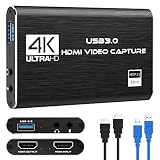
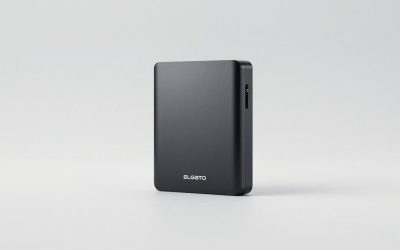
 BlueAVS 4K60 HDMI Video Capture Card for PS5Small & Portable4.33 x 2.36 x 0.9 inches0.3 poundsCheck on Amazon



Top 3 picks at a glance
The Short Answer
Most capture cards used for 1440p passthrough are small, palm-sized devices that measure roughly 4 to 6 inches long, 2 to 3 inches wide, and 0.5 to 1 inch thick (about 10 to 15 cm × 5 to 8 cm × 1.5 to 2.5 cm). They weigh between 2 and 5 ounces (55 to 140 grams), so physical size is rarely the limiting factor — clearance for HDMI cables and USB connections matters far more than the card itself.
The key distinction for 1440p passthrough: budget USB 3.0 sticks often pass 4K60 or 1440p at lower refresh rates, while mid-range and premium external cards handle 1440p144 or 4K60 passthrough comfortably. Before buying, check three numbers: passthrough resolution and refresh rate (you want at least 2560×1440 at 144Hz for a high-refresh monitor), whether the loop-out port supports HDR/VRR if your console uses it, and the physical footprint if you’re mounting it behind a TV or inside a streaming cart.
Standard Sizes
External HDMI capture cards cluster into three physical formats. Dimensions below are typical of each category; always confirm the exact spec sheet before ordering.
| Format | Typical Length | Typical Width | Typical Thickness | Typical Weight | Typical Price |
|---|---|---|---|---|---|
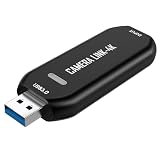
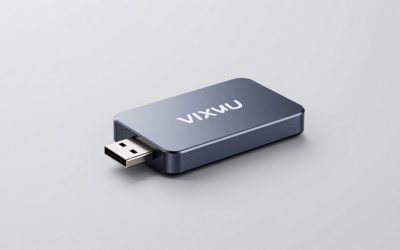
| Compact USB stick (e.g., Guermok, generic 4K sticks) | 2.5–4 in (6.5–10 cm) | 0.9–1.5 in (2.3–4 cm) | 0.3–0.5 in (0.8–1.3 cm) | 1–2 oz (30–55 g) | $15–$40 |
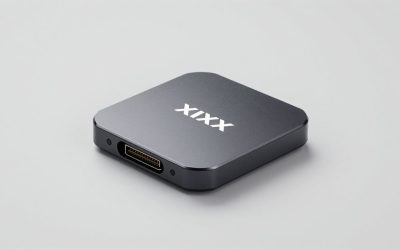
| Mid-size USB box (e.g., XIIXMASK, BlueAVS style) | 4–5.5 in (10–14 cm) | 2–3 in (5–7.5 cm) | 0.6–1 in (1.5–2.5 cm) | 2.5–4.5 oz (70–130 g) | $40–$100 |
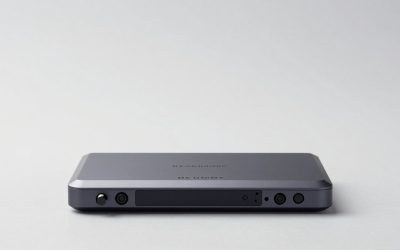
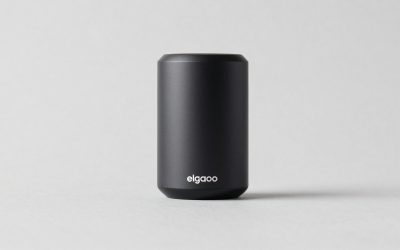
| Premium external unit (e.g., Elgato 4K S) | 4.5–7 in (11.5–18 cm) | 2.5–3.5 in (6.5–9 cm) | 0.7–1.2 in (1.8–3 cm) | 3–6 oz (85–170 g) | $100–$180 |
Note that “size” in capture card marketing usually refers to resolution and refresh rate capability rather than physical dimensions. A card advertised as “4K60 capture with 1440p144 passthrough” describes signal handling; the physical box may still fit in a jacket pocket.
How to Measure Your Space
1. Measure the clearance around your console or PC’s HDMI output. Leave at least 2 inches (5 cm) beyond the card’s length for the HDMI plug and cable bend — HDMI connectors add roughly 1.5 inches (4 cm) and stiff cables need a bend radius of about 1 inch (2.5 cm) to avoid straining the port.
2. Check your USB port spacing. A wide capture card can block adjacent USB ports on a hub or laptop. If your ports sit close together, measure port-to-port spacing and compare it to the card’s width, or use a short USB 3.0 extension cable (6 inches to 3 feet / 15 cm to 1 m).
3. Measure inside enclosures. If you’re tucking the card behind a TV or into a cable-management box, add 1 inch (2.5 cm) of ventilation space on all sides — these devices run warm during long sessions, typically drawing 2.5 to 5 watts over USB.
4. Plan cable runs. Budget the HDMI input cable (console to card), the loop-out cable (card to TV/monitor), and the USB data cable (card to computer). Two HDMI cables plus USB means three connection points; measure each run and add 10% slack.
5. Verify power delivery. Most USB 3.0 cards draw power from the port alone, but check whether your port supplies the required amperage — older USB 2.0 ports often can’t sustain 4K60 passthrough and cause dropouts.
6. If mounting on a streaming cart or shelf, note the card’s footprint and allow room for cable strain relief so connectors aren’t bearing weight.
By Room or Use Case
Living Room Console Setup (PS5, Xbox Series X/S)
Consoles live next to or under the TV, so the capture card slots into the HDMI chain between console and display. For 1440p passthrough on a 144Hz gaming monitor in this chain, a mid-size box like the BlueAVS class ($80–$100) is the sweet spot: it supports 4K60 passthrough with HDR, VRR, and ALLM, which consoles toggle automatically. Physically, plan for a 5 × 2.5 × 1 inch (13 × 6.5 × 2.5 cm) block with cables exiting both ends — allow 6 inches (15 cm) of depth behind your console. Budget stick-style cards ($15–$40) work for 1080p60 capture but often limit 1440p passthrough to 30–60Hz, which undercuts a high-refresh display.
Desktop Streaming Station
At a desk with a dual-PC or console-plus-PC setup, the card sits behind the monitor with plenty of slack, so size is a non-issue. Prioritize spec over footprint: for 1440p144 passthrough you want a card explicitly listing 2560×1440 at 144Hz or higher on the loop-out. Mid-size and premium units ($90–$150) handle this; the Elgato 4K S tier ($130–$150) adds 4K60 capture for creators who want headroom. Route cables through a monitor-arm channel or under-desk tray and Velcro the card to the tray to keep it off the carpet.
Portable / Laptop Streaming
Travel setups favor compact sticks under 4 inches (10 cm) long and 2 ounces (55 g). The trade-off: many small sticks max out at 1080p60 capture with 4K30 or 1440p60 passthrough, which is fine for casual streaming but not for a 1440p144 monitor. If portability matters and you need high-refresh passthrough, look for a compact mid-size unit rather than a stick. Bring a short USB-C extension in your bag — it prevents the card’s weight from stressing a laptop’s side ports.
Handheld Gaming (Switch, Switch 2, ROG Ally)
Docked handhelds output up to 1080p60 or 4K60 depending on the device, so a compact stick or budget box ($20–$45, like the XIIXMASK tier) covers capture needs with 4K60 passthrough. Physically these setups are forgiving: the card sits between dock and TV on an open shelf. Just confirm the card is driverless (UVC-compatible) so it works with any laptop without installing software.
Dorm or Small-Apartment Minimalist Setup
When desk depth is under 24 inches (61 cm), cable management gets tight. A compact stick saves space but check that 1440p passthrough isn’t capped at 60Hz — a common limitation on sub-$40 units. A slim mid-size card mounted with Velcro to the underside of a shelf keeps the HDMI loop clean. Total footprint including cable bends: roughly 8 × 4 inches (20 × 10 cm) of shelf space.
Common Sizing Mistakes
Confusing signal specs with physical size. “4K capture card” describes resolution, not dimensions. Check the listed physical measurements before planning a tight install.
Underestimating connector length. HDMI plugs extend 1 to 1.5 inches (2.5–4 cm) past the card body. In a cramped TV bay, that’s the difference between fitting and not.
Ignoring refresh-rate passthrough limits. A card that passes 4K60 may only pass 1440p at 60Hz, capping your gaming monitor. If you game at 1440p144, verify that exact combination in the spec sheet — “4K60 passthrough” alone doesn’t guarantee it.
Blocking adjacent USB ports. Wide cards on a laptop or hub can make neighboring ports unusable. A $10 short extension cable solves it.
Using a USB 2.0 port. Sticking a 4K60 card into an older port causes stutter and black screens. The card physically fits, but the bandwidth doesn’t — always use a USB 3.0 or better port (usually blue or marked SS).
Forgetting ventilation. Sealing a card inside a closed cable box during a multi-hour stream can trigger thermal dropouts. Leave an inch of open-air clearance.
Skipping the loop-out check. Some cheap cards output to TV and computer simultaneously at reduced quality. If you want full-quality local play while recording, confirm dual-output behavior before buying.
FAQ
What size capture card do I need for 1440p 144Hz passthrough?
Physical size is irrelevant to this spec — you need a card that explicitly lists 2560×1440 at 144Hz (or higher, like 1440p240) on its passthrough/loop-out. These are typically mid-size boxes measuring around 4–5.5 inches (10–14 cm) long, priced $80–$150. Budget sticks usually cap 1440p passthrough at 60Hz.
Will a capture card slow down my 1440p gameplay?
Not if passthrough is working correctly. The loop-out sends the signal to your display with negligible latency, typically listed at under 100ms and often under 20ms — it’s a hardware relay, not a processing step. If you notice lag, the usual culprits are a USB 2.0 port, a bad HDMI cable, or the card falling back to a lower refresh mode.
Do I need external power for a capture card?
Most external HDMI capture cards draw 2.5 to 5 watts from the USB 3.0 port and need no separate power adapter. A few premium 4K units include an optional power input for stability on long sessions. Check the spec sheet; if a power port exists, it’s usually required only for USB-C phones or tablets.
Can one capture card work with PS5, Xbox, and Switch?
Yes — external HDMI capture cards are platform-agnostic. Any card with HDMI in and loop-out works with PS5, Xbox Series X/S, and Switch or Switch 2 docks, since the card just processes the HDMI signal. Confirm passthrough specs match each console’s output: consoles output up to 4K60, so a card with 4K60 passthrough and HDR/VRR support (found in the $90–$150 range) covers all three at full quality.