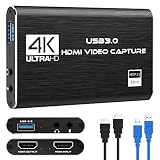
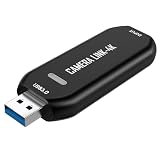
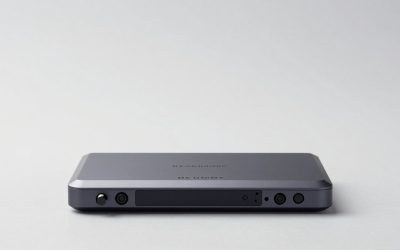
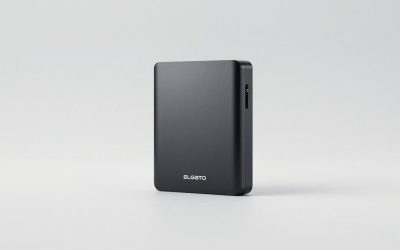
When building a modern streaming setup or a dual-PC gaming workstation, the humble capture card often becomes the most misunderstood bottleneck. Many creators focus entirely on “capture resolution” while ignoring the feature that actually dictates their day-to-day gaming experience: the passthrough.
The most common mistake buyers make is purchasing a budget-tier card—often lured by flashy “$25 4K Capture” labels—only to discover that while the card accepts a 4K input, it downgrades their high-end gaming monitor to a sluggish 1080p at 60Hz. They end up playing their fast-paced shooter on a muddy, laggy display just so their stream can see a compressed feed. Passthrough is the clean, uncompressed loop-out signal sent from your console or gaming PC directly to your primary monitor. If your passthrough does not perfectly match your monitor’s native resolution, refresh rate, and dynamic range, you are actively downgrading your gaming hardware every time you stream.
Our Top Picks


Top 3 picks at a glance

Decide These 3 Things First
Before diving into specifications, you must define the boundaries of your gaming ecosystem by answering three foundational questions:
- What is your source device’s maximum output? If you are gaming on a Nintendo Switch, you only need a card that supports a 1080p at 60Hz passthrough. However, if you are on a PlayStation 5 or Xbox Series X, your source can output 4K at 120Hz with Variable Refresh Rate (VRR) and High Dynamic Range (HDR). Buying a card without HDMI 2.1 passthrough means leaving your console’s best features completely unused.
- What are your primary monitor’s specifications? Your capture card’s passthrough capability must meet or exceed your monitor’s native resolution and refresh rate. If you play on a 1440p monitor running at 144Hz, a standard 4K at 60Hz passthrough card will force your monitor to drop to either 1080p at 120Hz or 1440p at 60Hz.
- Do you require portability or a permanent desk integration? You must choose between an external USB-based capture card and an internal PCIe-based card. External cards offer plug-and-play convenience across multiple machines but add physical clutter to your desktop. Internal cards install directly into a desktop PC’s motherboard, offering maximum bandwidth and zero desk footprint, but they cannot be used with laptops.
1. Form Factor, Footprint, and Cable Management
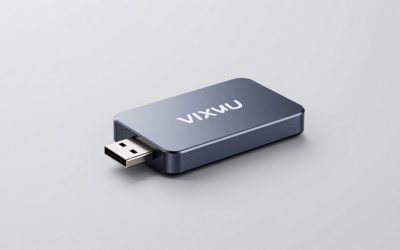
From a workspace design perspective, physical dimensions and cable routing are major considerations. External capture cards vary wildly in footprint. Ultra-budget dongles can be as small as 2.5 x 1.5 x 0.5 inches and weigh less than 2 ounces, dangling directly from your computer’s USB port. While compact, these put physical strain on your ports and often lack dedicated passthrough ports entirely.
Mid-range and premium external cards—such as the Elgato 4K series or comparable desktop units—typically measure around 4.4 x 2.8 x 0.7 inches and weigh between 4 and 6 ounces. These units require dedicated desk space. Because they sit between your console, your monitor, and your PC, they require at least three thick cables (two HDMI cables and one high-bandwidth USB-C cable) radiating from their chassis. If you prefer a minimalist, clutter-free desk, an internal PCIe card (standard dimensions of roughly 4.7 x 4.8 x 0.8 inches) is the superior choice, keeping all cable connections hidden behind your PC tower.
2. Chassis Material and Thermal Performance
Capture cards process massive amounts of uncompressed video data, which generates significant heat. Budget capture cards under $40 almost exclusively use thin ABS plastic housings. Under continuous load, these plastic shells trap heat, causing internal temperatures to rise above 110 degrees Fahrenheit (43 degrees Celsius). This thermal stress leads to micro-stutters, color shifting, or sudden signal drops mid-stream.
Premium units utilize anodized aluminum-alloy enclosures. The metal chassis acts as a passive heatsink, safely drawing heat away from the internal processing chips and dissipating up to 5 to 10 watts of thermal energy. When assessing a card, look for machined aluminum casings with physical cooling vents. A cooler-running card ensures a stable passthrough signal that will not drop frames during a grueling six-hour gaming session.
3. Connection Bandwidth and Latency
The connection interface determines how fast the capture card can send the copied video feed to your recording software, but it also dictates the overall stability of your passthrough loop.
- USB 2.0 (480 Mbps): Found on ultra-budget cards in the $20 to $30 range. These cards use heavy MJPEG compression, resulting in a laggy capture feed (often 100 to 200 milliseconds of latency) and highly restricted passthrough options.
- USB 3.0 / USB 3.2 Gen 1 (5 Gbps): The baseline for modern mid-range capture cards. It allows for uncompressed 1080p60 capture and supports lag-free passthrough up to 4K at 60Hz or 1080p at 240Hz. Latency on the capture side drops to a negligible 30 to 50 milliseconds.
- USB 3.2 Gen 2 (10 Gbps): Found in high-end external cards. This interface supports massive data streams, enabling high-frame-rate capture and ultra-low capture latency (under 30 milliseconds).
- PCIe Gen 3 x4 (Up to 32 Gbps): The gold standard for professional setups. By interfacing directly with the motherboard, internal cards offer virtually instant capture feeds (under 10 milliseconds of latency) and the most stable, uncompressed passthrough signals available.
4. Display Performance: Resolution, Refresh Rates, and VRR
As we look toward the hardware landscapes of 2026, high-refresh-rate displays and variable sync technologies have become standard office and gaming expectations. Your capture card’s passthrough must not act as a bottleneck to these features.
The critical limiting factor is the HDMI version of the passthrough ports. HDMI 2.0 ports are capped at a maximum bandwidth of 18 Gbps. This bandwidth can comfortably carry a 4K signal at 60Hz, a 1440p signal at 144Hz, or a 1080p signal at 240Hz. However, HDMI 2.0 cannot handle 4K at 120Hz.
To unleash the full power of current-gen consoles or high-end gaming PCs, you need a card equipped with HDMI 2.1 passthrough ports, which support up to 48 Gbps of bandwidth. This allows for uncompromised 4K at 120Hz or even 8K at 60Hz passthrough. Additionally, ensure the card explicitly supports Variable Refresh Rate (VRR) passthrough (including G-Sync and FreeSync compatibility) and High Dynamic Range (HDR10). Without VRR passthrough, you will experience severe screen tearing on your gaming monitor while playing games with fluctuating frame rates.
5. Price Tiers and Value Realization
The capture card market is divided into three distinct pricing tiers, each serving different performance expectations:
- The Budget Tier ($20 to $50): These are basic USB dongles (such as generic 1080p cards or entry-level XIIXMASK models). They are excellent for budget-conscious creators streaming Nintendo Switch games or retro consoles. They typically offer basic 1080p at 60Hz passthrough, lack HDR or VRR support, and use plastic housings.
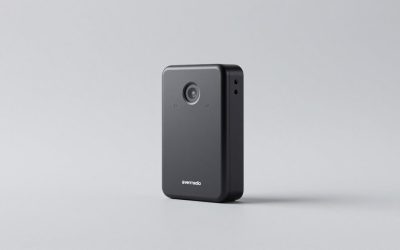
- The Mid-Range Tier ($80 to $150): This tier includes well-known external USB 3.0 units (like the Elgato 4K series or equivalent offerings from AVerMedia). They offer robust 4K at 60Hz or 1440p at 120Hz passthrough, solid aluminum builds, reliable passive cooling, and HDR10 support. This is the sweet spot for the majority of content creators.
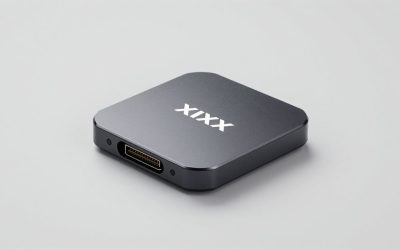
- The Premium Tier ($180 to $300+): This category consists of cutting-edge HDMI 2.1 external boxes and high-lane internal PCIe cards. They deliver full 4K at 120Hz or 1440p at 240Hz passthrough with complete VRR support, zero-latency capture, premium software suites, and professional-grade metal construction.
6. Power Delivery and Power Draw
External capture cards are typically bus-powered, meaning they draw their operational wattage directly from your computer’s USB port. A standard USB 3.0 port provides 5 volts at 0.9 amps, totaling 4.5 watts of power.
High-performance capture cards push this power limit to its absolute edge. If you plug a demanding external card into an underpowered USB port, an unpowered USB hub, or a port shared with multiple high-draw peripherals (like external hard drives or RGB keyboards), the capture card will repeatedly disconnect, drop its passthrough signal, or exhibit flickering video. Always ensure your motherboard’s USB port can deliver a stable 4.5W to 5W of power, or opt for an internally powered PCIe card that draws up to 25W directly from the motherboard slot.
7. Compatibility and Driver Integration
A capture card’s hardware is only as good as its software integration. You must choose between UVC (USB Video Class) compliant cards and cards requiring proprietary drivers.
UVC-compliant cards are driverless, plug-and-play devices. When you plug them into a Windows, macOS, or Linux system, the OS recognizes them instantly as a standard webcam. This eliminates software conflicts, minimizes system overhead, and ensures immediate compatibility with streaming software like OBS Studio, Streamlabs, and Zoom. Proprietary-driver cards require custom manufacturer software to function. While these software suites sometimes offer advanced color-tuning or audio-mixing utilities, they can introduce system instability and compatibility headaches during major operating system updates.
Spec Checklist
The table below breaks down what you should expect from a capture card’s passthrough and capture capabilities across the three major price segments.
| Specification | Budget Tier ($20–$50) | Mid-Range Tier ($80–$150) | Premium Tier ($180–$300+) |
|---|---|---|---|
| Max Passthrough | 1080p @ 60Hz | 4K @ 60Hz or 1440p @ 120Hz | 4K @ 120Hz or 8K @ 60Hz |
| Max Capture Rate | 1080p @ 30Hz / 60Hz (compressed) | 1080p @ 120Hz or 4K @ 30Hz | 4K @ 60Hz or 1440p @ 144Hz |
| HDMI Version | HDMI 1.4 | HDMI 2.0 | HDMI 2.1 |
| USB Interface | USB 2.0 | USB 3.0 / USB 3.2 Gen 1 | USB 3.2 Gen 2 or PCIe Gen3 x4 |
| VRR & HDR Passthrough | No | HDR10 (No VRR) | Full HDR10, G-Sync, & FreeSync |
| Chassis Material | ABS Plastic | Aluminum or Composite | Anodized Aluminum Heatsink |
Red Flags
When shopping for a capture card, keep an eye out for these common marketing traps and design flaws:
- “4K Input” advertised as “4K Passthrough”: Many cheap, white-label cards proudly display “4K” in their product titles. Read the fine print carefully. Often, “4K Input” simply means the card can accept a 4K cable signal, but it will forcibly downscale your passthrough to 1080p before sending it to your monitor.
- Fake USB 3.0 Ports: Some ultra-budget manufacturers use blue plastic inserts inside their USB plugs to mimic the appearance of a high-speed USB 3.0 port, while the internal wiring only contains the four pins required for slow USB 2.0 speeds. If a card claims “USB 3.0” but is priced under $20, verify its user reviews for speed warnings.
- No Mention of VRR or HDR: If a manufacturer does not explicitly state that their card supports Variable Refresh Rate or HDR passthrough, assume it does not. Running a console through a non-VRR card will instantly disable those features in your console’s display settings.
- Lack of HDCP Management: High-bandwidth Digital Content Protection (HDCP) is a form of digital copy protection. Some low-end capture cards do not handle HDCP handshakes properly. When you plug in a PlayStation or a streaming device like an Apple TV, you will be met with a frustrating, permanent black screen rather than your game feed.
FAQ
Does using a capture card passthrough introduce input lag to my gaming monitor?
No. A true hardware passthrough port uses an internal splitter that duplicates the incoming HDMI signal. The path leading to your gaming monitor is a direct, hardware-level connection with zero processing applied, meaning it introduces 0 milliseconds of latency. Any lag you might experience only occurs on the captured video feed displayed inside your streaming software on your computer, not on your gameplay monitor.
Can I play at 120Hz if my capture card only captures video at 60Hz?
Yes, provided your capture card features a high-bandwidth passthrough circuit (such as HDMI 2.1). Many premium cards are designed to let you play and view your game at 4K at 120Hz via the passthrough port, while simultaneously downscaling and compressing the captured feed to 1080p at 60Hz or 4K at 60Hz for your stream audience. This gives you the best of both worlds: a competitive gaming experience and a highly compatible stream format.
As an Amazon Associate we earn from qualifying purchases at no extra cost to you.



What happens if I try to pass through an HDR signal to a non-HDR capture card?
If your capture card does not support HDR passthrough, your gaming console will detect the limitation and disable HDR output entirely, forcing your game into Standard Dynamic Range (SDR). If you force an HDR signal through a card that lacks proper color-mapping capabilities, your gaming monitor may display the image, but the stream’s captured video feed will appear incredibly washed out, gray, and desaturated.
Why am I getting a black screen on my monitor when using my capture card?
This is usually caused by one of three issues: HDCP protection is enabled on your console (you must disable HDCP in your PlayStation’s system settings before connecting it to a capture card), the USB port on your PC is not supplying enough power to run the card’s processing chips, or the HDMI cables you are using do not have enough bandwidth to support your desired resolution and refresh rate.